Step 1 of 5
Download and run the installer
Download ReelSkillz-Manager-v1.2.6-Winx64.exe from your purchase email or the download page and double-click it. Windows will most likely show a blue “Windows protected your PC” window instead of the installer. Don't close it — Step 2 takes you through it.
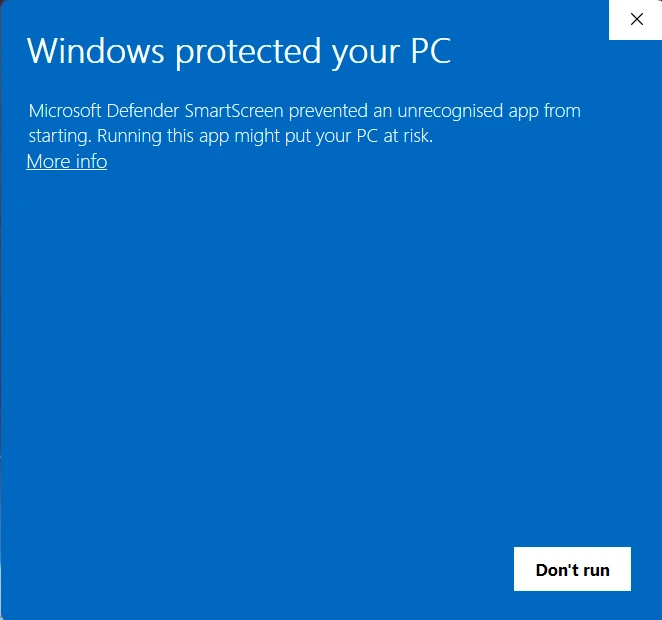
Why this appears
ReelSkillz is a small independent studio, and we haven't completed Microsoft's publisher-verification program yet — so SmartScreen calls the file an “unrecognised app” from an “Unknown publisher.” That's a statement about paperwork, not about the app. Nothing is wrong with your download.
Step 2 of 5
More info → Run anyway
- 1Click the underlined More info link in the blue window.
- 2The app name and publisher appear, and a new Run anyway button shows up at the bottom. Click it.
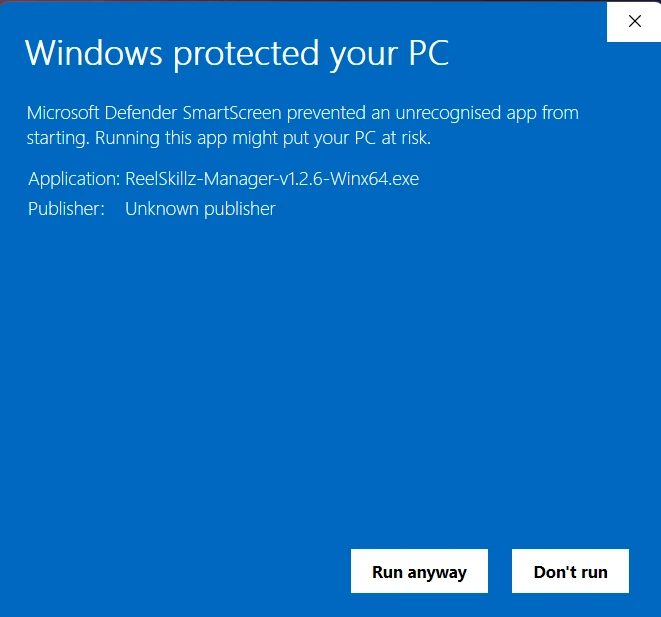
You only do this once. After the app is installed, SmartScreen won't ask again — and we're completing code-signing so future releases skip this screen entirely.
Step 3 of 5
Work through the setup wizard
Two simple screens. The defaults are fine — just click through.
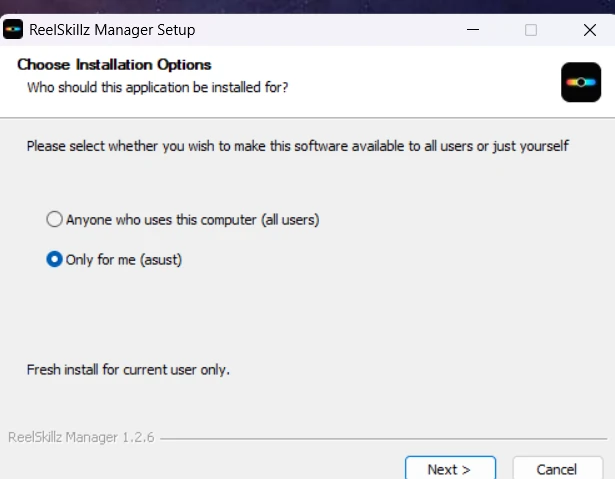
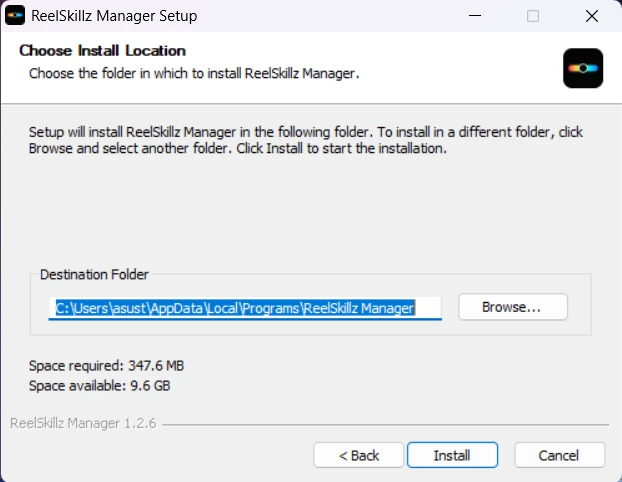
Installing for all users needs administrator rights. If you're on a work machine without them, pick Only for me — everything works the same.
Step 4 of 5
Finish and sign in
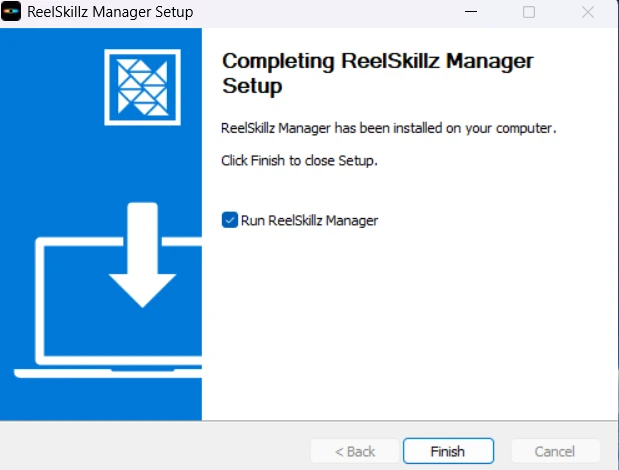
Leave Run ReelSkillz Manager ticked and click Finish. The app opens — sign in with the email you bought your licence with, and your licence activates on this machine right away.
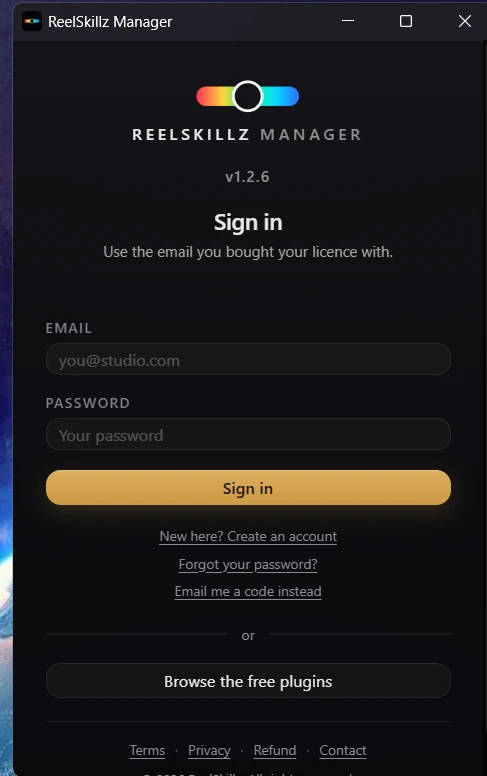
No licence yet? Browse the free plugins at the bottom of the sign-in window works without an account.
Step 5 of 5
Open it in DaVinci Resolve
Install your plugins from ReelSkillz Manager, then fully quit and reopen DaVinci Resolve (quit the app, don't just close the project). Add the effect from:
OpenFX→ReelSkillz→ReelSkillz Film Pro / Film Lite
Bought Film Pro but don't have an account yet? Create one first so your licence can be linked to it — create your ReelSkillz account →
Common questions
I don't see a “Run anyway” button.
You need to click More info first — the button only appears after that. If it's still missing, right-click the .exe → Properties → tick Unblock → Apply, then run it again.
Windows says the app is blocked entirely.
That's Smart App Control. Go to Settings → Privacy & security → Windows Security → App & browser control → Smart App Control settings and set it to Off, then run the installer again.
My antivirus flagged the installer.
Same reason as SmartScreen — the file is new and unsigned, not malicious. Choose Allow/Trust, or pause the antivirus during install.
The plugin doesn't appear in Resolve.
Make sure Resolve was fully quit — check it isn't still running in the background — before reopening it.
Still stuck?
Send us a screenshot and we'll get you running — replies within 24 hours.