Five steps, with screenshots — including the macOS security warning almost everyone sees on first launch, and exactly how to get past it.
macOS 11+ · Apple Silicon·About 5 minutes
Step 1 of 5
Install the app
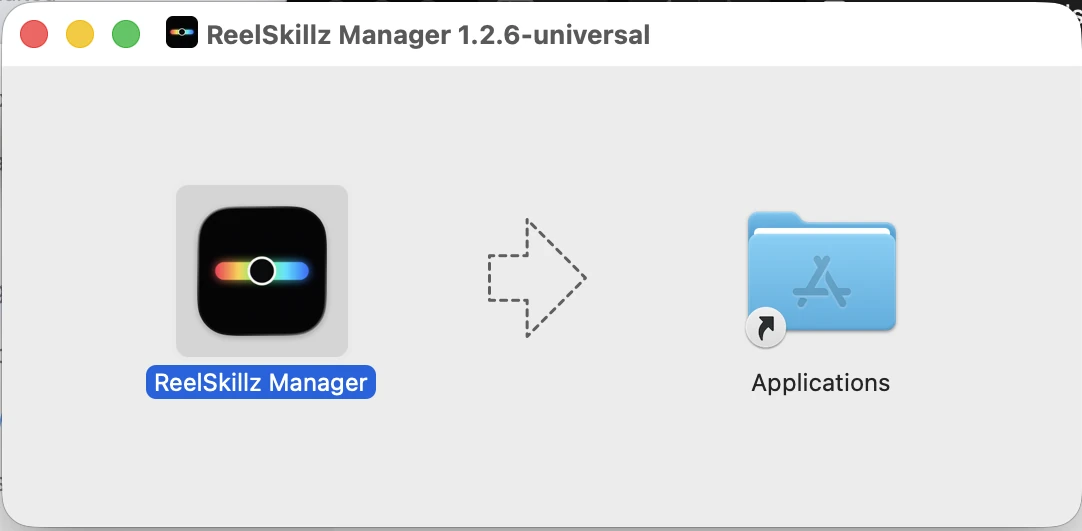
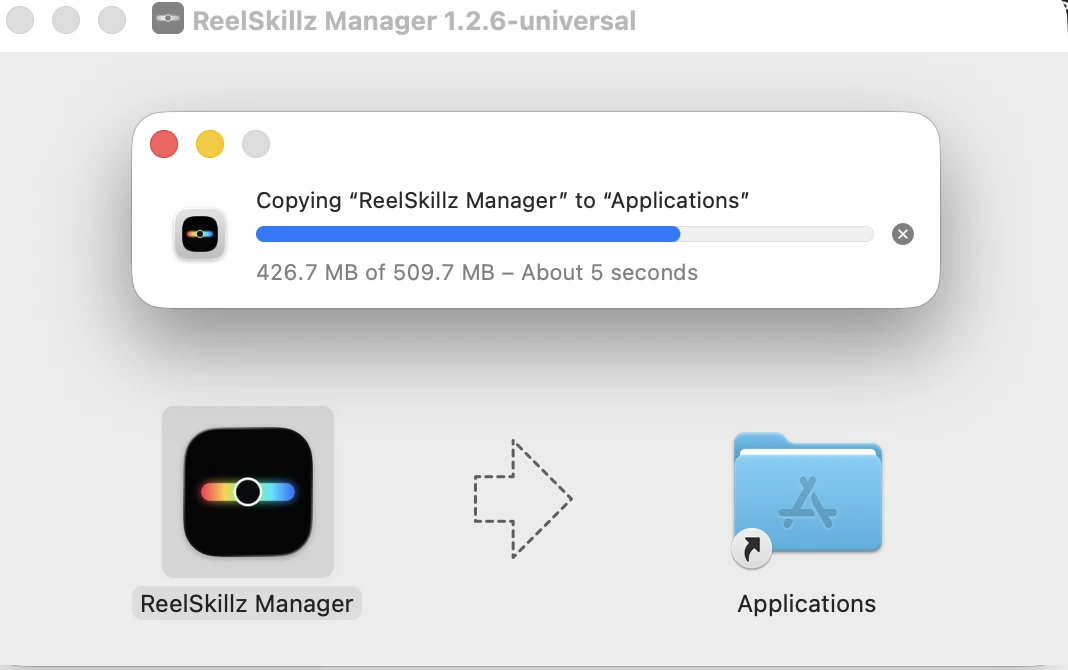
Download ReelSkillz-Manager-v1.2.6-macOS.dmg from your purchase email or the download page, then double-click it. A window opens with the app on the left and an Applications shortcut on the right — drag the ReelSkillz Manager icon onto Applications and wait for the copy to finish (about 500 MB).
1. The disk image window — drag the app onto the Applications folder.
2. Copying takes a few seconds. When it's done, eject the disk image.
Step 2 of 5
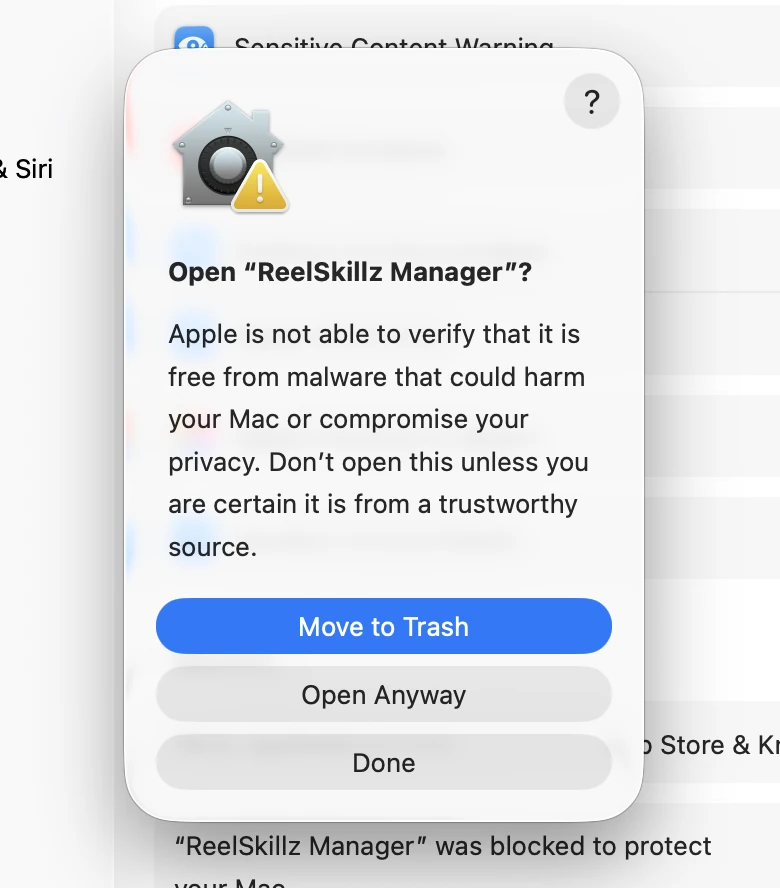
The “Not Opened” warning
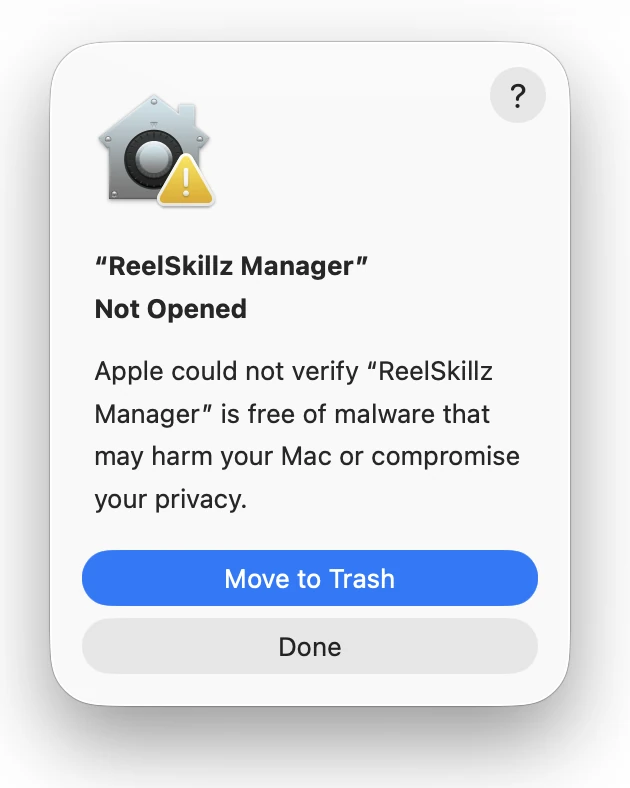
Open ReelSkillz Manager from your Applications folder. The first time, macOS will show “ReelSkillz Manager Not Opened.” Click Done — then continue to Step 3, which unlocks the app permanently.
ImportantDo not click “Move to Trash.” It's the highlighted blue button, but it deletes the app. Click Done instead.
The first-launch warning. Click Done — then go to Step 3 to unlock the app for good.
Why this appears
ReelSkillz is a small independent studio, and we haven't finished Apple's notarization process yet. So macOS says it “could not verify” the app — that's a statement about paperwork, not about the app. Nothing is wrong with your download, and the next two steps are Apple's own approved way to open it.
Step 3 of 5
Allow it in Privacy & Security
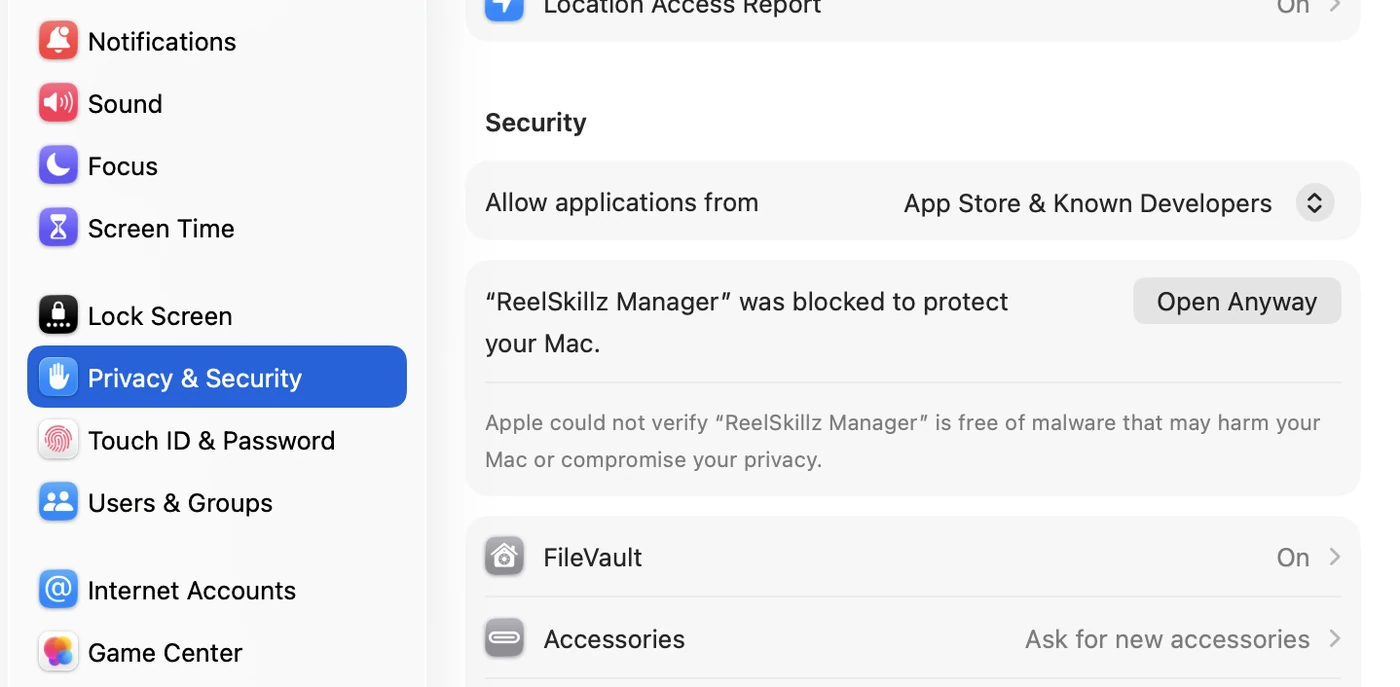
Open System Settings → Privacy & Security and scroll down to the Security section. You'll see the line “ReelSkillz Manager” was blocked to protect your Mac — click Open Anyway beside it.
System Settings → Privacy & Security → Security → Open Anyway. This button only appears after you've tried to open the app once (Step 2).
Leave “Allow applications from” set to App Store & Known Developers — you don't need to lower your Mac's security setting. The Open Anyway button is a one-time exception for this app only.
Step 4 of 5
Confirm and authenticate
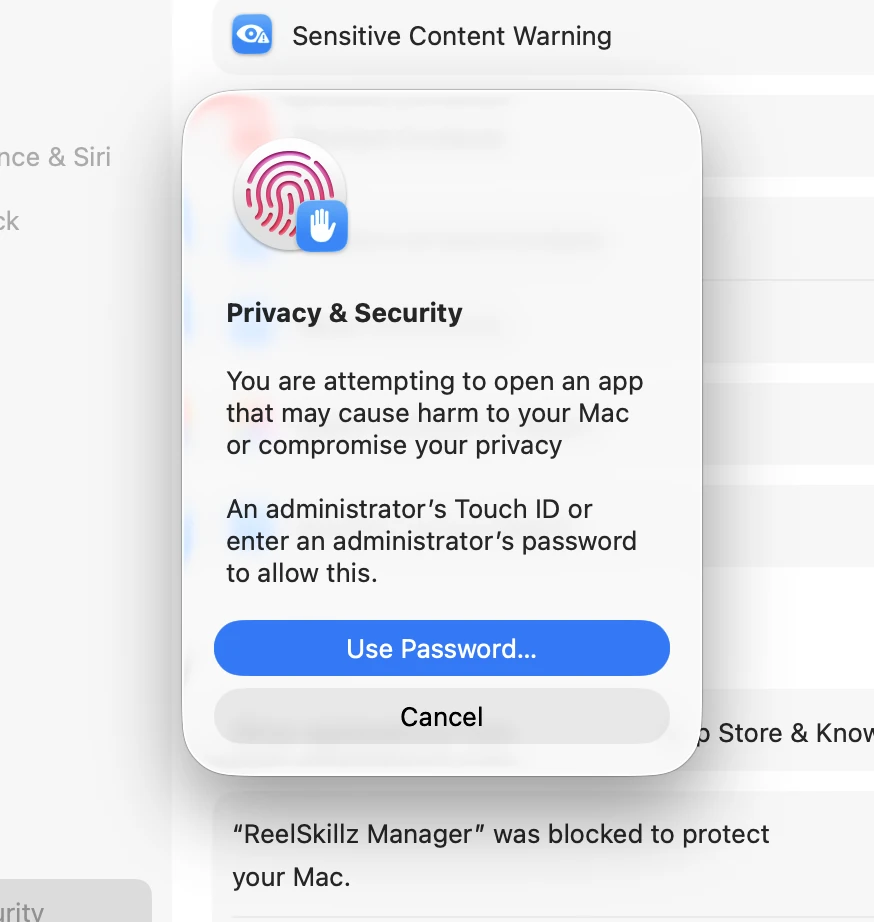
macOS asks you to confirm twice. Both prompts are expected — and this is the last time you'll see them.
1. In Open “ReelSkillz Manager”?, click Open Anyway (the middle button — again, avoid Move to Trash).
2. Authenticate with Touch ID, or click Use Password… and enter your Mac administrator password.
That's the security part done. ReelSkillz Manager launches immediately and opens normally from now on — no warnings, no Settings trips.
Step 5 of 5
Sign in, then open Resolve
In ReelSkillz Manager, sign in with the email you used to purchase — your licence activates on this machine right away. Then fully quit and reopen DaVinci Resolve (quit the app, don't just close the project) and add the effect from:
OpenFX→ReelSkillz→ReelSkillz Film Pro / Film Lite
Bought Film Pro but don't have an account yet? Create one first so your licence can be linked to it — create your ReelSkillz account →
Common questions
I clicked “Move to Trash” by mistake.
Open the Trash, right-click ReelSkillz Manager → Put Back, then start again from Step 2. Or just re-open the .dmg and drag it across again.
I don't see “Open Anyway” in Privacy & Security.
That button only shows for about an hour after you try to open the app. Launch ReelSkillz Manager once more (Step 2), then go back to Settings.
The plugin doesn't appear in Resolve.
Make sure Resolve was fully quit — check it isn't still running in the background — before reopening it.
My licence won't activate.
Confirm you're online and signed in with the purchase email. Still stuck? Email studio@reelskillz.com and include a screenshot.
Still stuck?
Send us a screenshot and we'll get you running — replies within 24 hours.